If this is your first time in the simulator, follow this path from the access screen to your first completed EVM report. You do not need to know the game in advance.
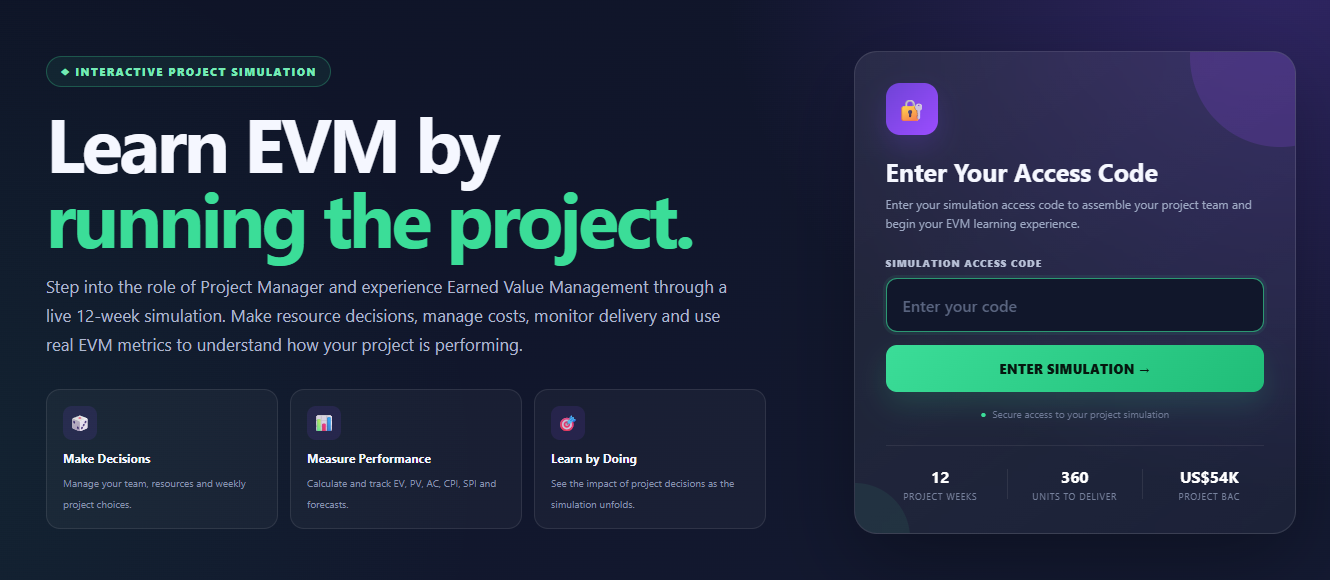
Your access code opens your allocated simulation. It is the entry point to the game.
Enter the Project Manager details and choose an avatar. The PM becomes part of the weekly project result through the quality adjustment.
Set up the core team. The names you enter follow the resources through the weekly game, report and statistics screens.
Read the project goal, planned work and current progress before rolling any production dice.
Each core resource rolls production dice. The dice determine how many acceptable project objects the resource contributes during the week.
The Project Manager can reduce the team's accepted output when defects are found, or add accepted output when the PM contributes positively. This adjustment is applied to the week's production result.
Once the required resources have rolled, select the green Continue to Week Report button. The report converts the week's production and cost decisions into EVM results.
Review CPI, SPI, cost, progress and trends. From Week 2 you can also decide whether additional resources or overtime are worth the extra cost.
Do not try to maximise dice at any cost. The simulation rewards understanding the trade-off between production, cost and project performance. More capacity may increase progress, but it also increases Actual Cost.
Still not finding the answer to your question?
Our support team can help. Tell us what you were trying to do and, if possible, include a screenshot of what you see.